
How to navigate the Categories
(Below is a screen shot. To actually navigate, click on the live headings on the Home screen above)

1) Click on the Category title of the Home screen for the first level of the category. In this case, 'About Us'.
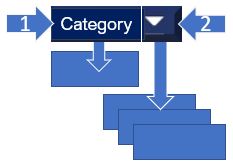
2) Click on drop-down icon (if there is one) to see related article/s.
3) Click on an article of interest.
4) Click the EDHS icon wherever it is visible to go to the Home page.
Major Category Icons:

These icons define our breakdown of the items and topics we cover at the museum.
These are further broken down by presenting 'Tours' of like items within the category.
Tours are items linked together so that they can be scrolled as a sequence of pictures of the items.
When an item of interest is found, clicking on the QR code of that item, displays the details of that item. If there are sub items of that item, they will be available as well. Items such as cabinets or display cases with multiple items on display are presented in this manner. By 'unlocking' a cabinet, the details of the cabinet will be displayed individually.
Item descriptions within the museum. Many of the items within the museum will have a very brief description (if any) on display in the museum. They will have a QR code that you scan with your phone. Your phone will immediately display the details of the item. This allows us to take advantage of our precious real estate for displaying items while maximizing our capacity for an effective description and history of each item.
And don't forget the effective nose of our resident coyote.

He'll sniff out names and items you have no idea exist within our midst. This is, after all, a modern urban coyote with roots to an existence long before our ancestors settled in. He knows the drill.
Likewise, we're a casual adaptable group with our feet on the ground and our eyes on the horizon.
 (This EDHS icon is live.)
Website - Bob Kingsep